Text Tools for Workdocs is an app for monday.com Workdocs, the documents built into the monday.com work platform. It makes formatting, editing and working with text easier and faster: select some text, open the app from the toolbar, and in a few clicks you can review it (words, sentences, reading time), transform it (upper case, title case, slugs and more) or find and replace inside it.
I built it with React as part of montools, a small collection of productivity apps for monday.com. The panel with its three tabs is a React interface that monday.com loads right inside the Workdocs toolbar.
Where it lives
Right in the Workdocs toolbar
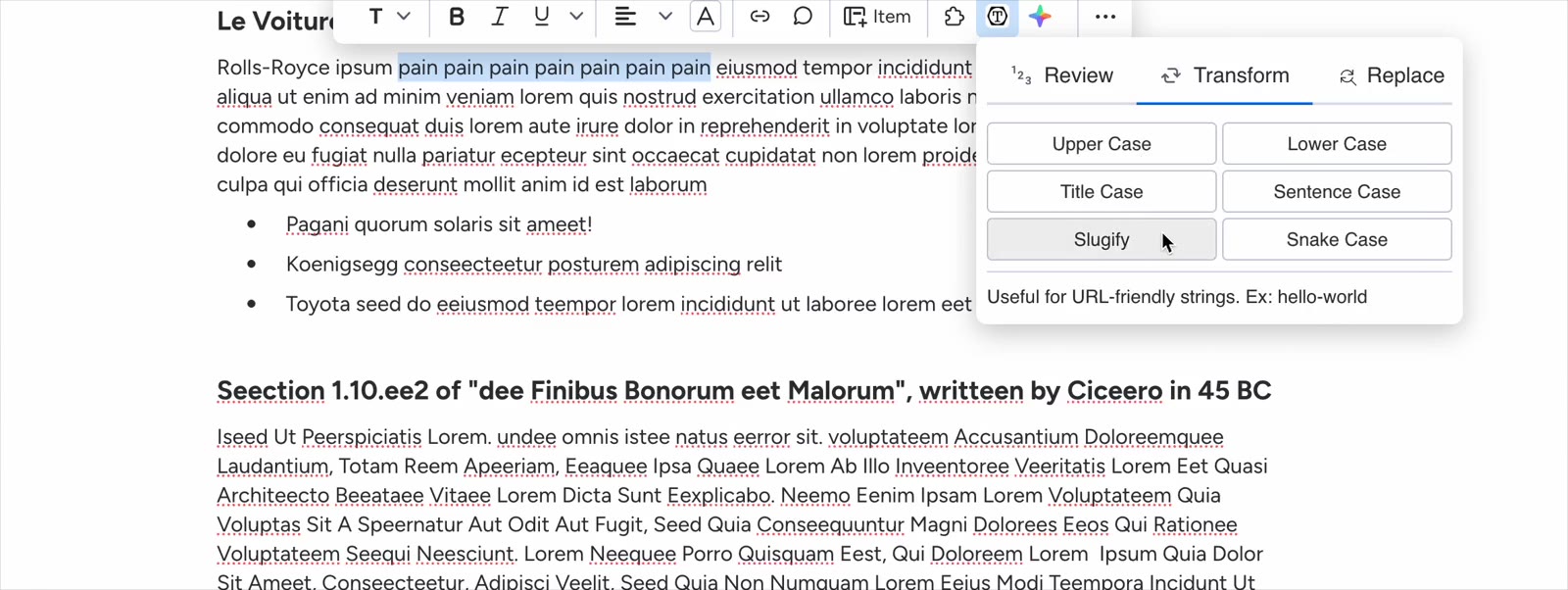
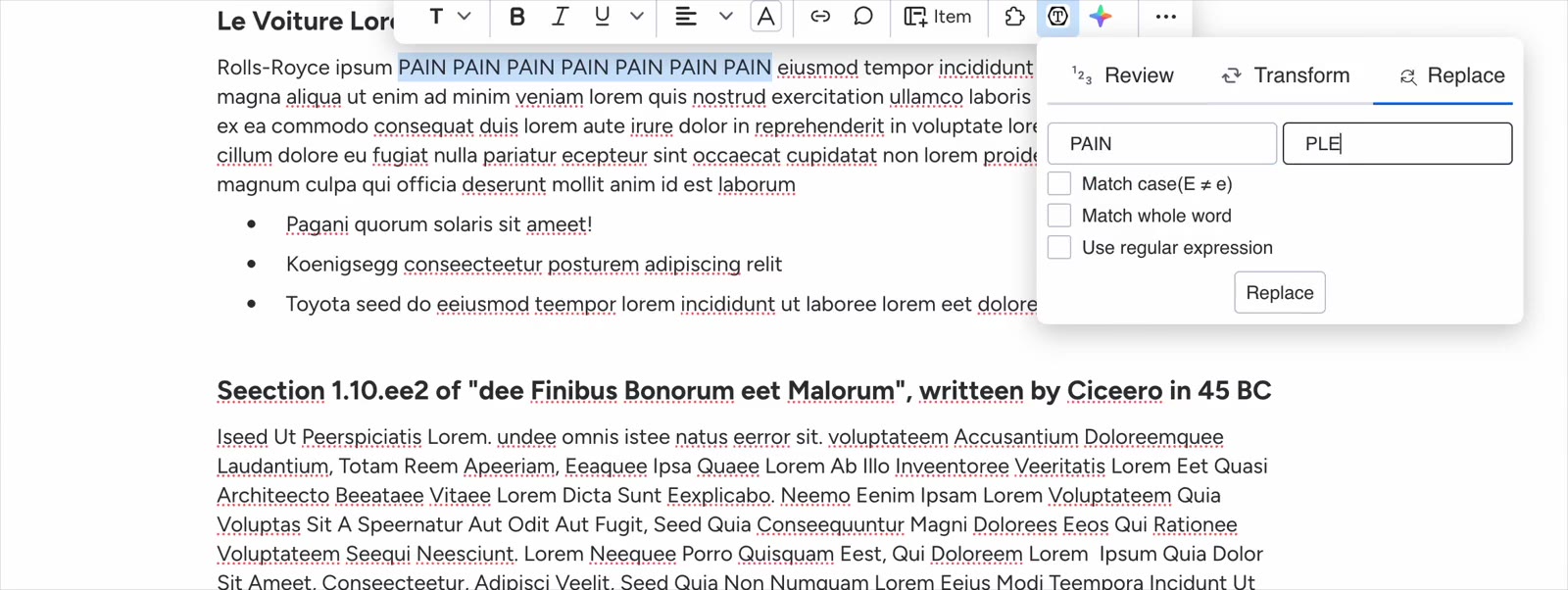
There is nothing to open in another tab. When you select text in a Workdoc, monday.com shows its contextual toolbar above the selection, and Text Tools appears there as its own button. The app opens in a small panel with three tabs, and everything it does applies only to the selected text, never to the rest of the document.
Tab 1
Review: analyze the content
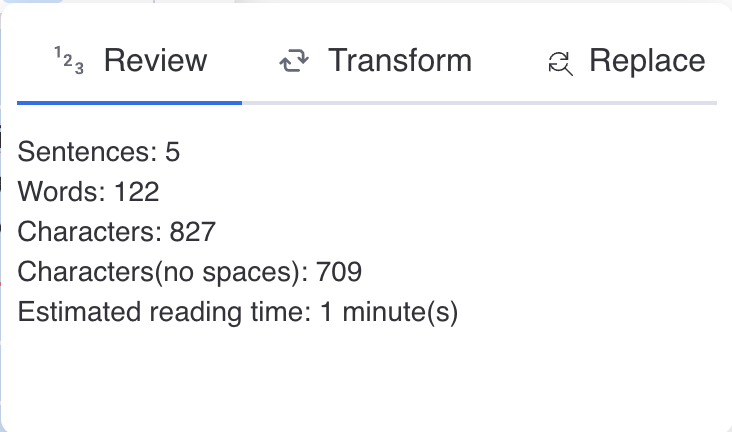
The Review tab counts the sentences, words and characters (with and without spaces) in the selection and estimates its reading time, which helps you write for your audience and keep within length limits.
Different tools often give slightly different counts, so the app is transparent about its rules. Sentences are counted by splitting the trimmed text on ., ! and ?. Words are runs of letters, and compound words joined by - or / (like third-party or XLS/CSV) count as one word.
Tab 2
Transform: change the case in one click
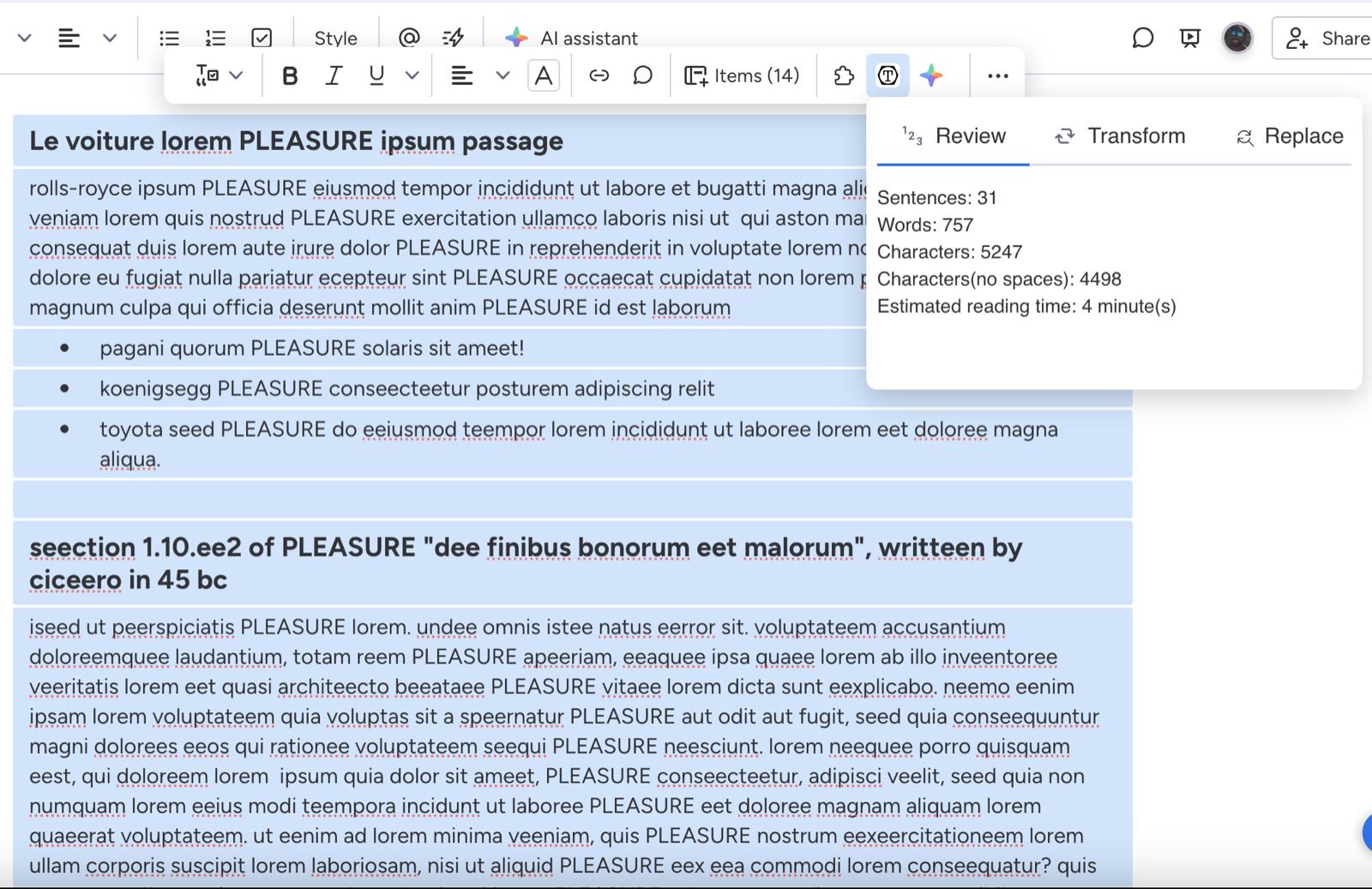
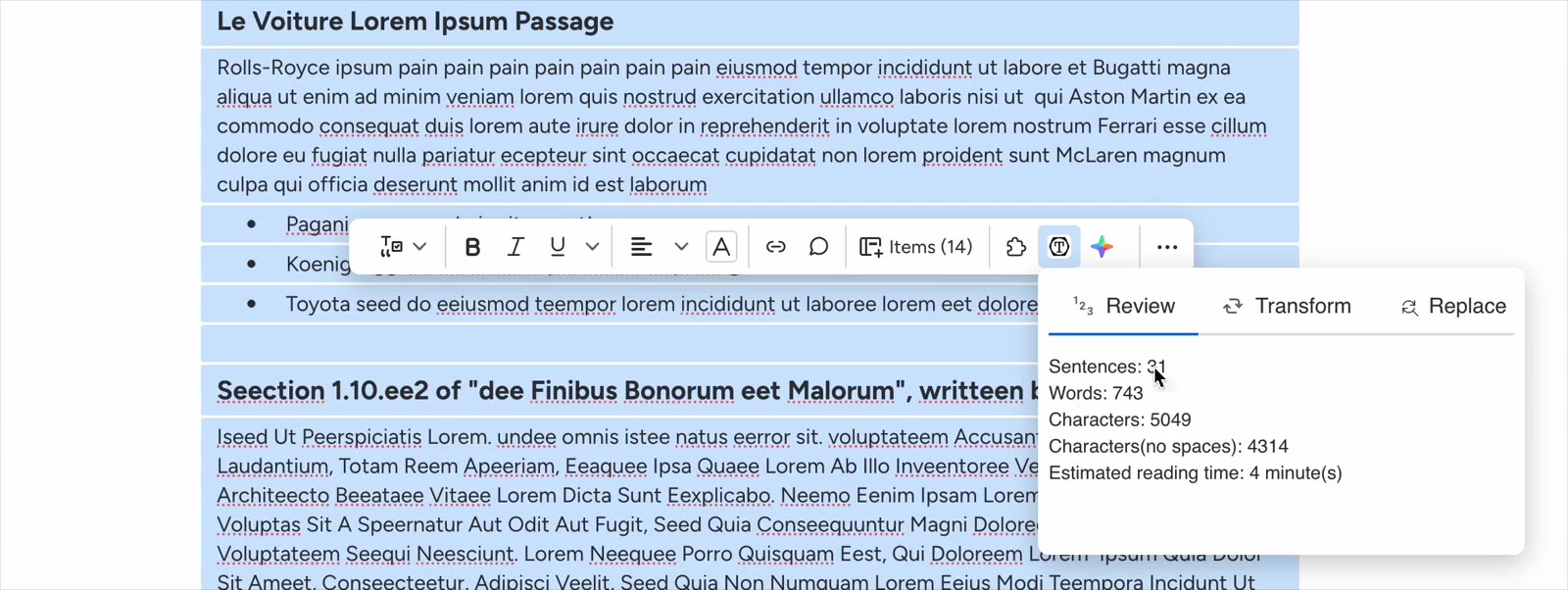
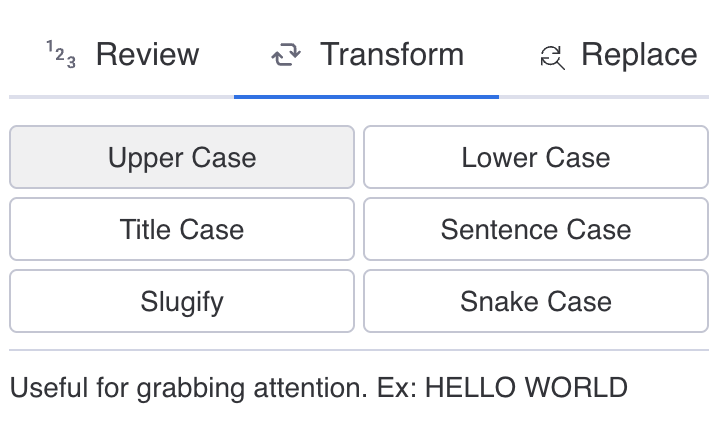
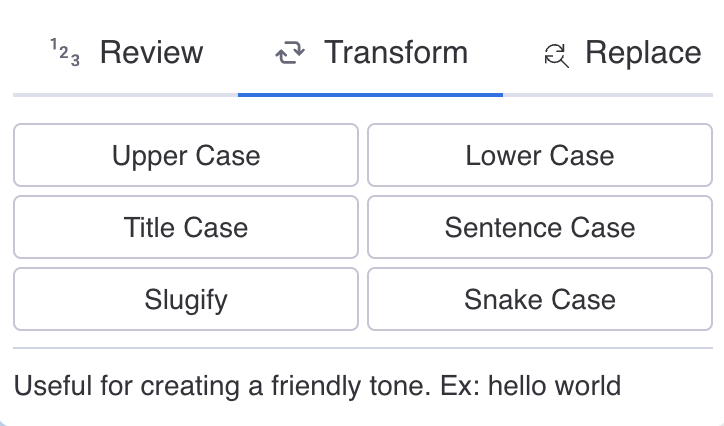
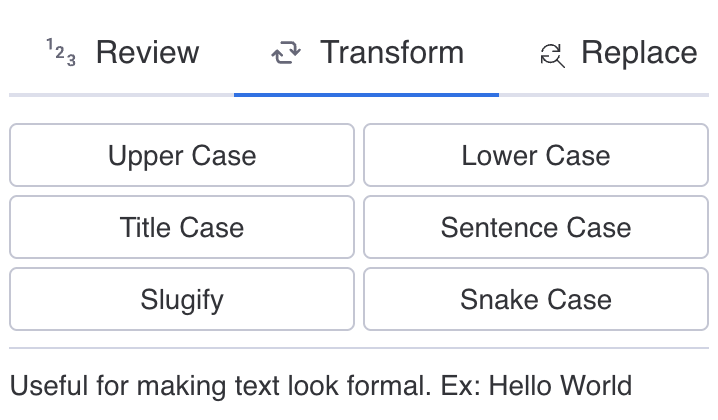
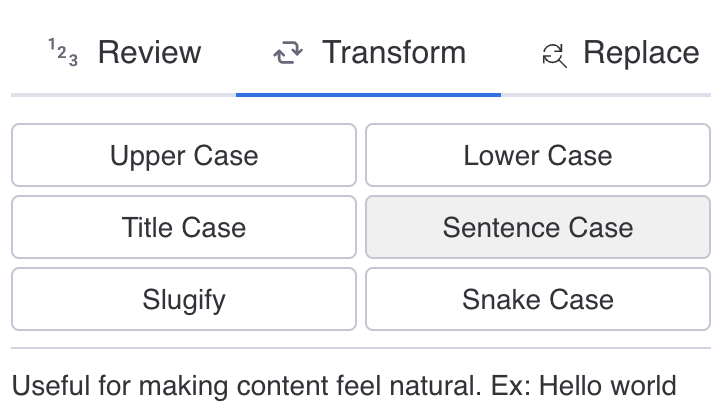
The Transform tab converts the selection to Upper Case, Lower Case, Title Case, Sentence Case, Snake Case, or a URL-friendly slug. Each option shows a short hint with an example, so it is clear what it will do before you apply it.
Tab 3
Replace: find and replace in the selection
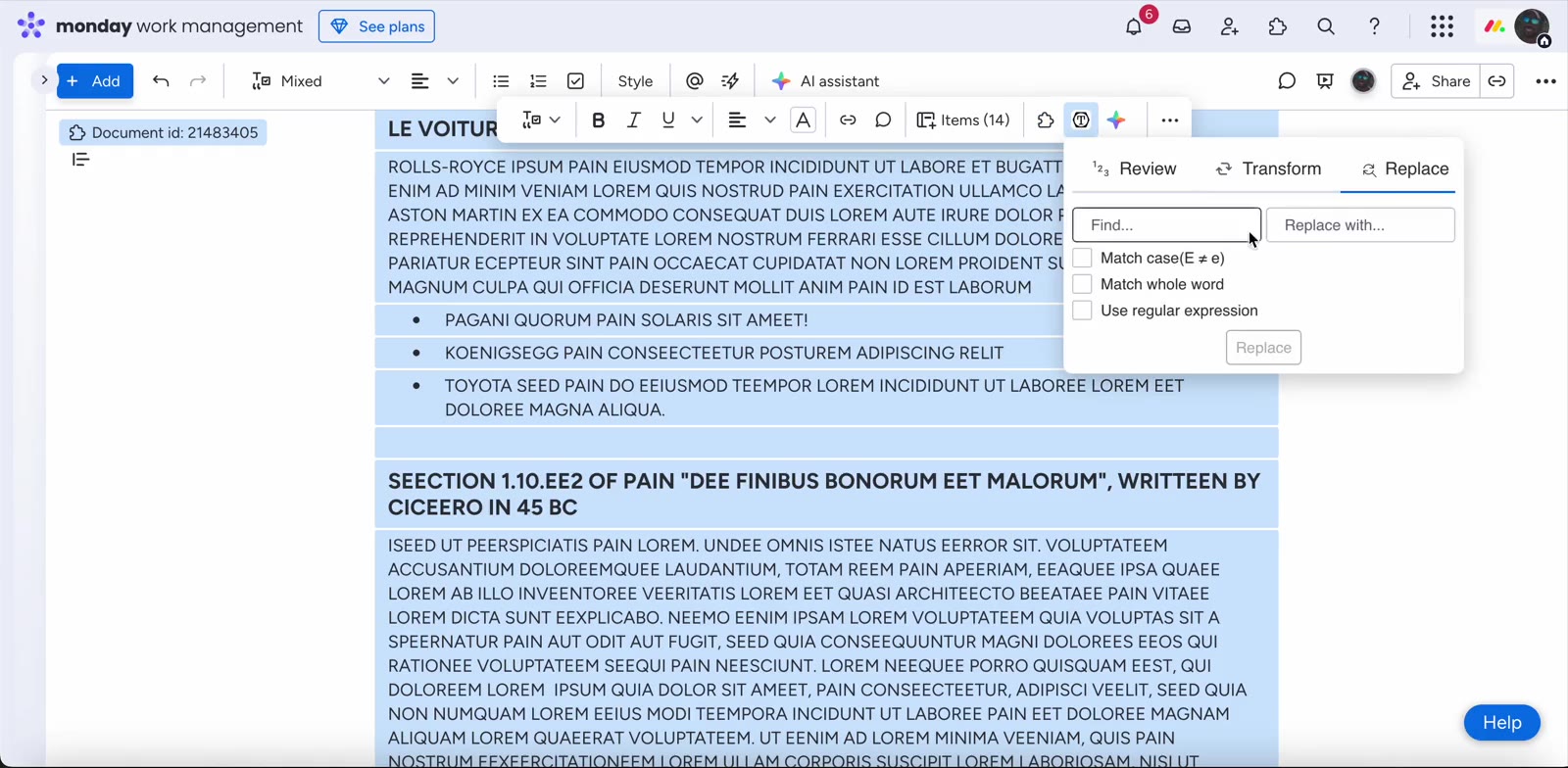
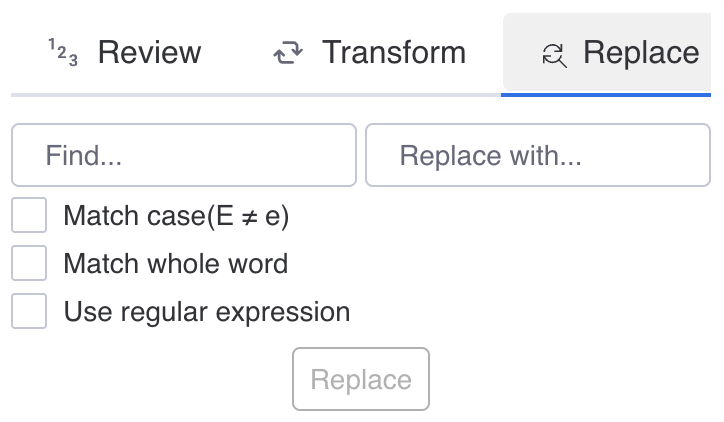
The Replace tab searches the selection and replaces matches, with options to match case, match whole words or use a regular expression for more advanced patterns. Because it works on the selection, you can safely change one section of a long document without touching the rest.
Private by design
The app processes text locally within the document. It does not store, collect or send any document content outside monday.com, and it does not integrate with any third-party service. That makes it safe to use on internal or sensitive documents.
Try it
Text Tools for Workdocs has a free plan for small teams, paid plans for larger ones, and a 14-day free trial. You can find the details and install it from the Text Tools page on montools.